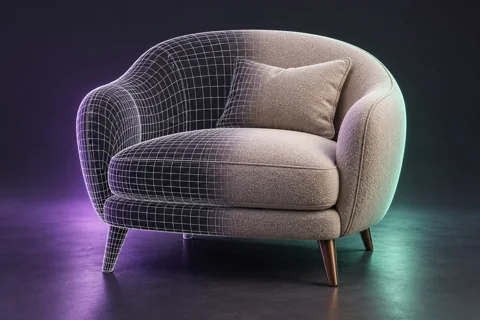
How to edit part of an image with AI: masks and targeted changes
When only one cushion or a small material area needs changing, regenerating the entire image can introduce unwanted edits. Local editing, or inpainting, defines a working region with a mask. Accuracy depends on the tool, mask and source image.
Define one change
Describe a single task: replace fabric, remove an object or adjust a shape. A comment explains the intention; a mask defines the region when supported by the selected tool. An ordinary team-board note is not automatically an AI mask.
Select the right area
For material replacement, select the surface that actually needs changing. Editing a contour may require a small margin around its boundary. Avoid selecting neighbouring objects unnecessarily. Save the original and check the service's mask conventions.
Write a specific instruction
Example: “Change the selected cushion's fabric to light linen. Preserve its shape, seams, folds and lighting direction. Leave the rest of the image unchanged.” Make substantial edits one at a time and compare each new version.
Review the whole frame
Inspect mask edges, texture transitions and shadows. Compare the background and unselected objects too: some tools may alter them. If the result is inaccurate, simplify the task, adjust the mask or use manual retouching. Keep feedback and versions together.
Vumli editorial team
All articles